
In order to apply for admission to an MIT Bootcamps program, you must create an account on our Bootcamps Application System. To do so please go to the Bootcamp Applications System website and click the "Create Account button in the top right—or click here to create an account—then follow the system prompts. Be sure to fill out your profile information with as much detail as possible.
Please note that the language of instruction for MIT Bootcamps is English. All application materials—including documentation and your video interview—must be submitted in English.
Choose A Bootcamp Program To Apply For
Click the "Apply Now" button at the top of the site, or click the "Select Bootcamp" button in the upper right of your Applications Dashboard to start an application. You may only start an application for a Bootcamp program that is currently open for application.
Update Your Profile Information
The Profile Information section of your application should be automatically filled with the information you entered when you created your MIT Bootcamps account, but please double-check it! If any of your information has changed, please update your profile with current information.
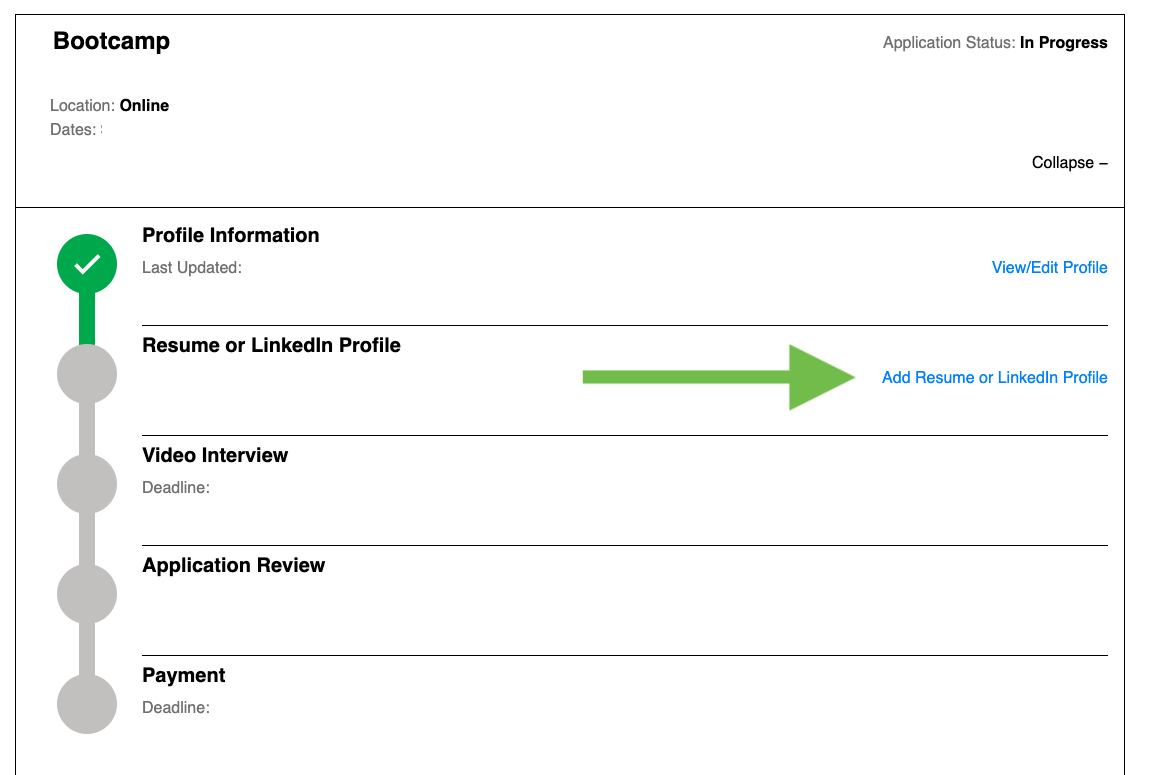
Submit Your Resume and/or LinkedIn Profile
Next, you will be asked to upload your resume and/or submit a link to your LinkedIn profile. If you choose to submit your LinkedIn profile, please be sure your profile privacy settings are set to public so we will be able to view it.
Please note: Your resume or CV must be submitted as a PDF, and must be submitted through the Bootcamps Application Dashboard as part of the application process. MIT Bootcamps cannot accept documents submitted via email or saved in other formats.
Complete Your Video Interview
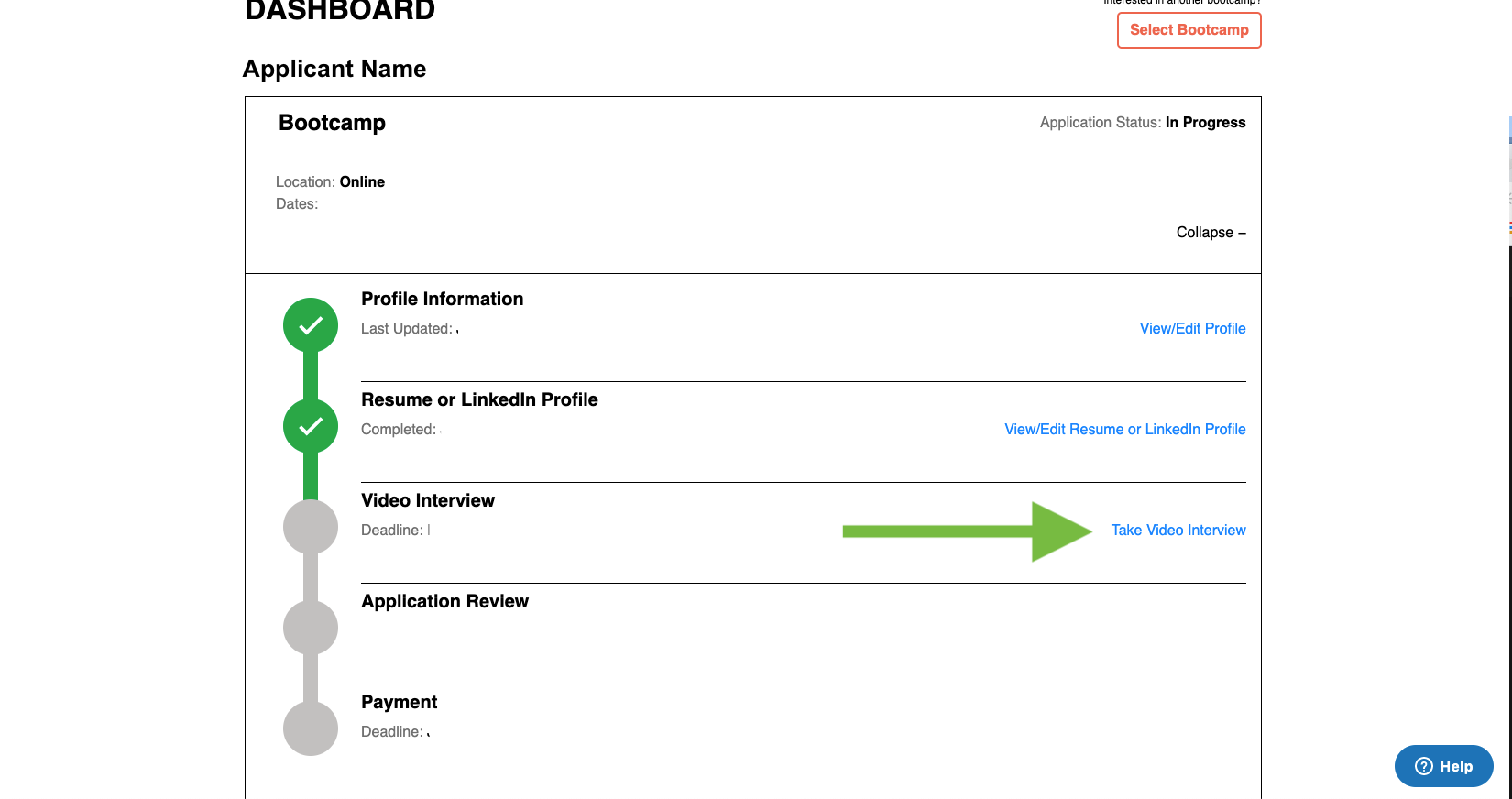
You will then complete your video interview. In your application, click the "Take Video Interview" link to start your interview, when ready. You will be directed to Jobma to record your video. For more information about the video interview process, please refer to the article How do I complete my video interview?
Follow the system prompts to prepare for and complete your interview. Please be prepared to complete your interview; you will have one opportunity to record your video interview. We cannot reset video interviews for any reason other than severe technical issues or emergencies. If you experience either of these while attempting to complete your interview, please reach out to us at bootcamp-support@mit.edu for support.
After you have completed your video interview, you will see a Thank You page from Jobma. Navigate back to your Bootcamp Application Systems profile and you will see that your application has been submitted.
You will receive a confirmation email from the system that your application has been received and we will get back to you with a decision as soon as possible. Please see below for more detailed instructions including screenshots for this process if needed.
How to Apply — Visual Walkthrough
To apply to a Bootcamp Program you must first create a profile on our application site. For detailed instructions with screenshots for creating your account, please visit the FAQ How do I create an account on the Bootcamps Application Site?
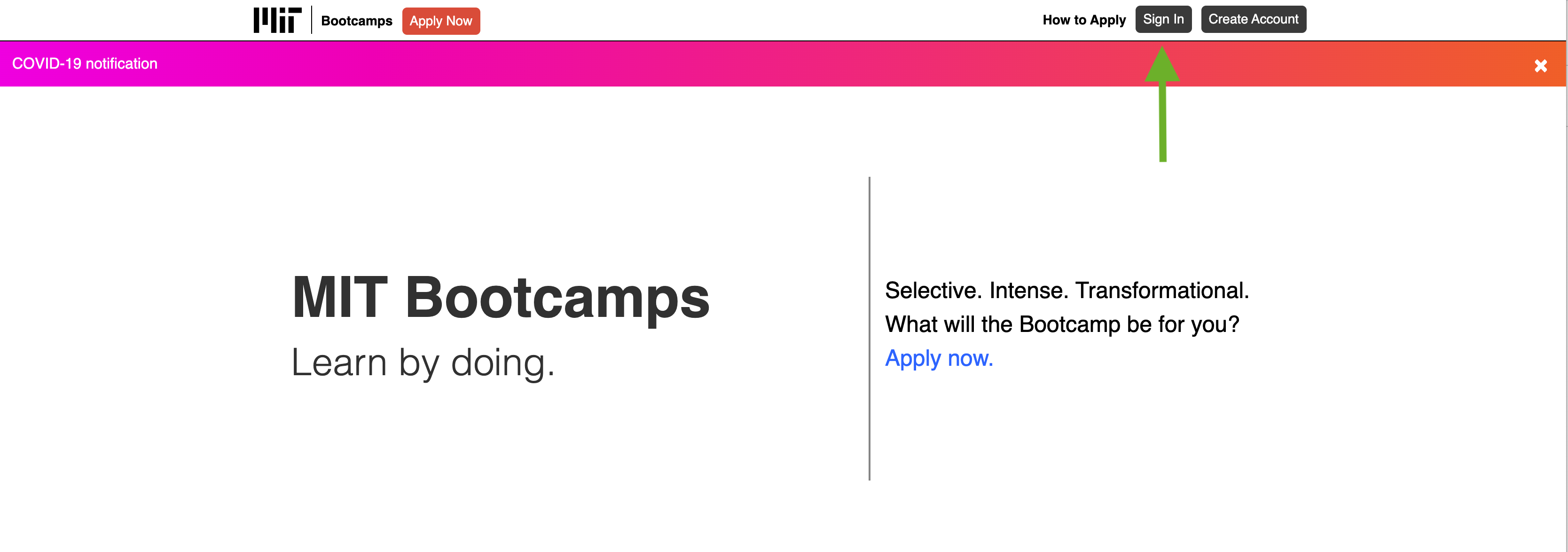
- To apply to a Bootcamp, log in to your account via the "Sign In" button in the top right corner of the page.
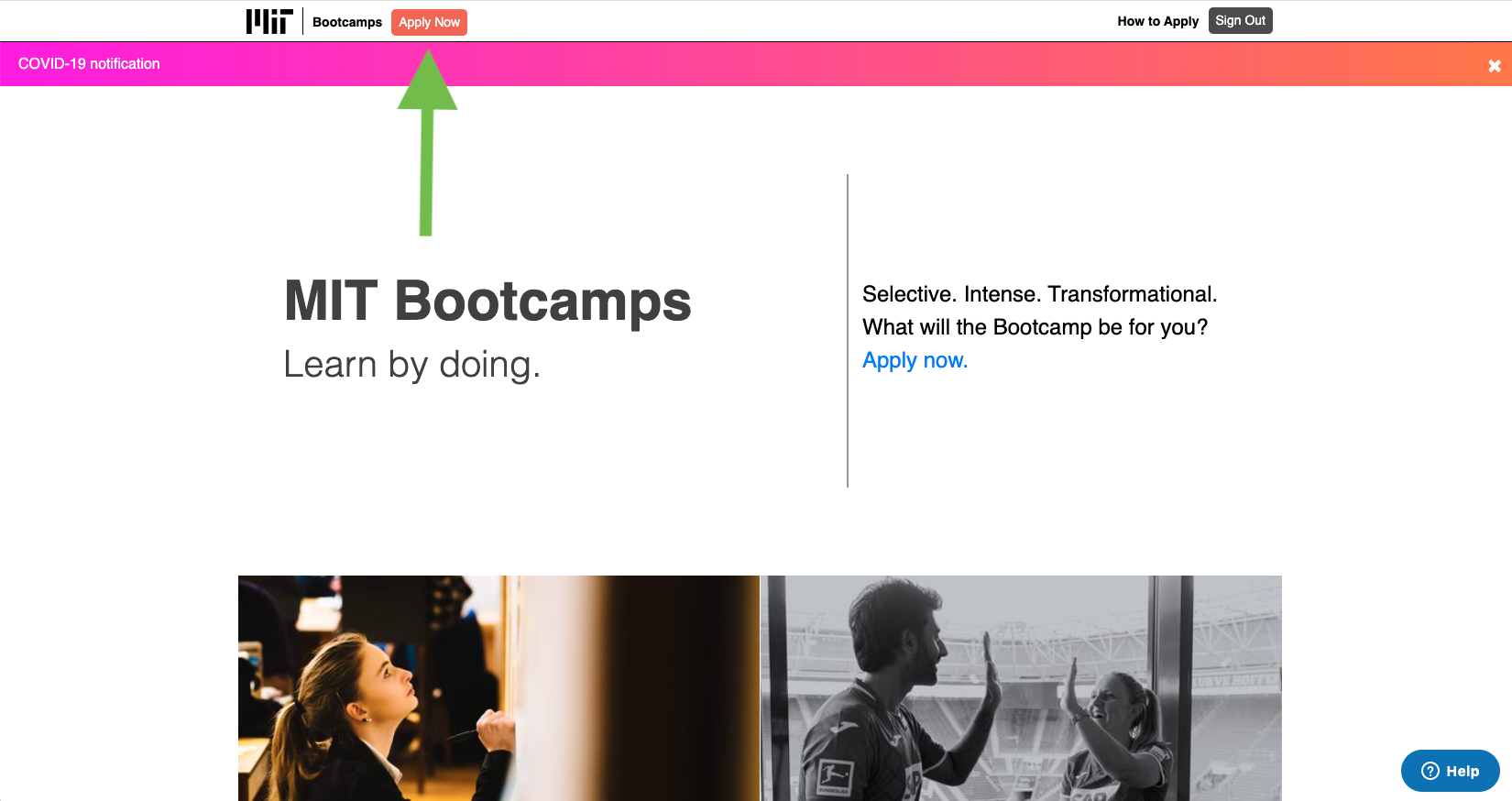
- To apply to a Bootcamp Program, click “Apply Now”.
- You will then see this page:
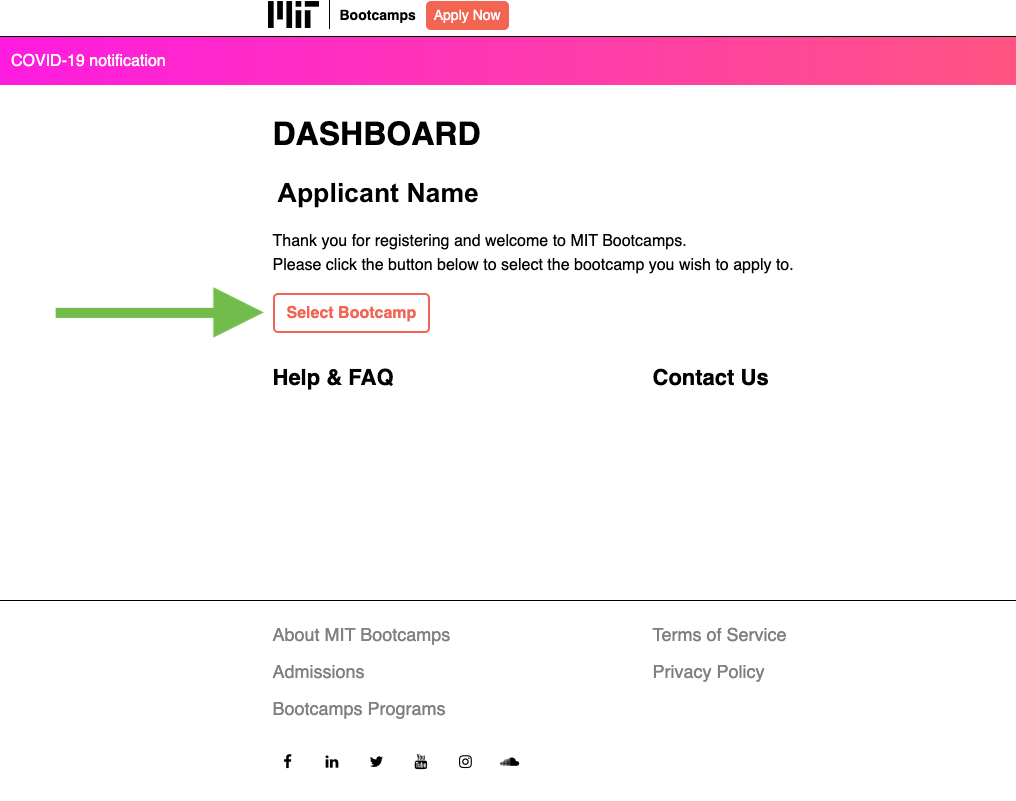
- Click Select Bootcamp and a page will appear from the side:
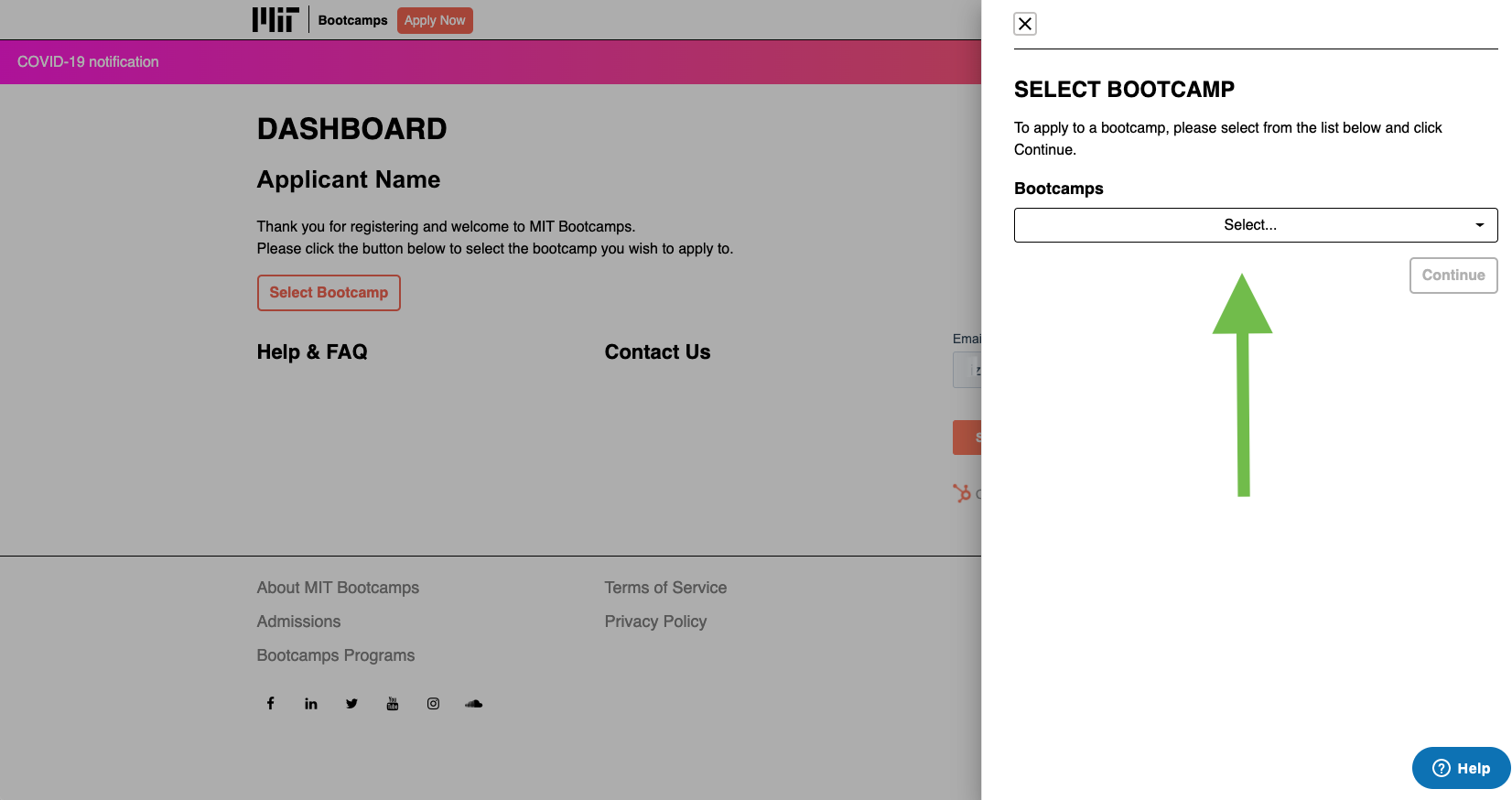
- Select the Bootcamp you would like to apply to from the drop-down menu.
- You will then see this screen:
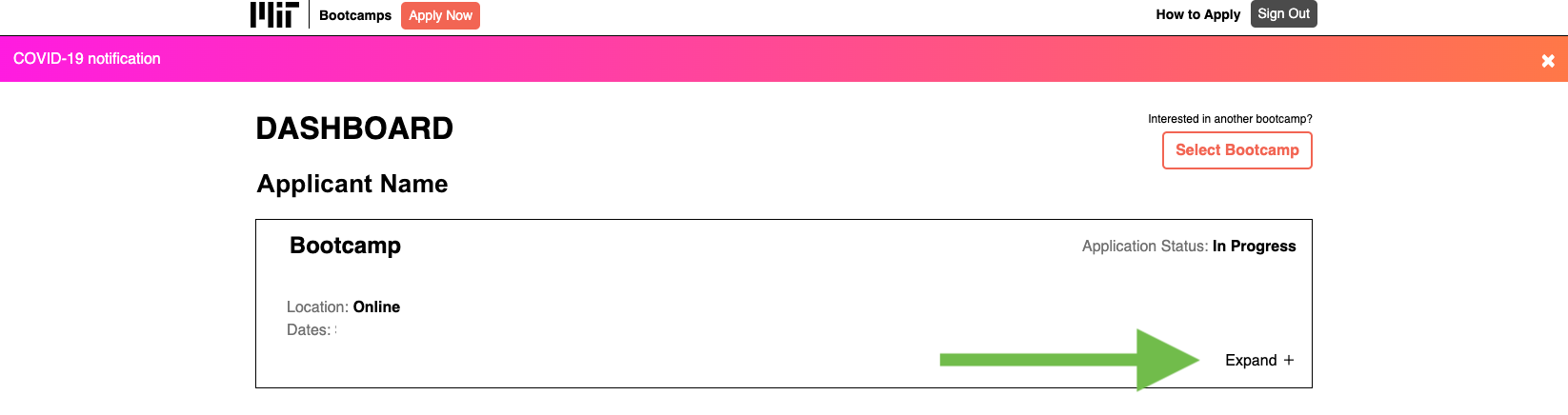
- Click "Expand" to see the requirements for your Bootcamp Application.
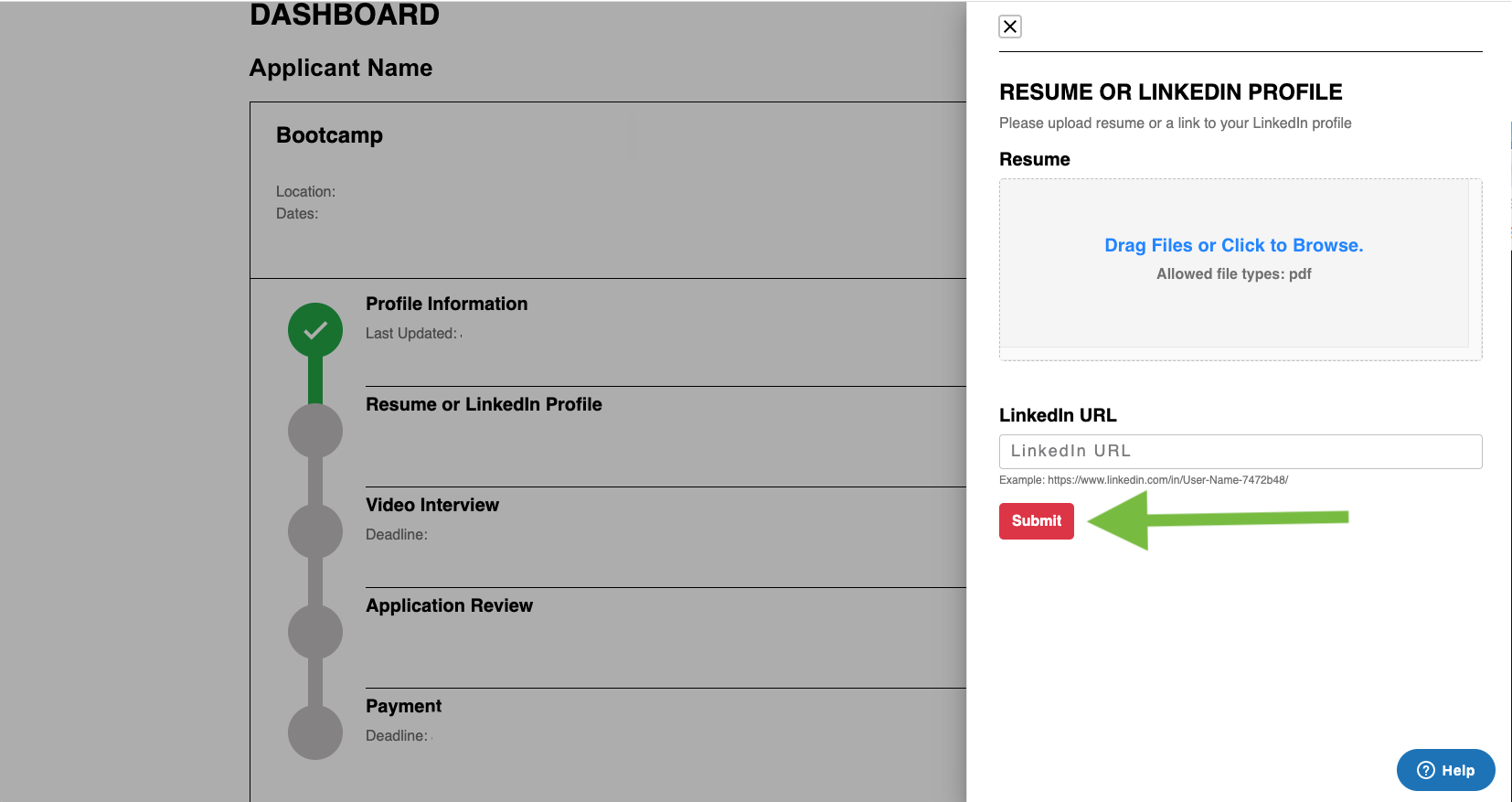
- Upload your resume or input your LinkedIn profile URL and click "Submit". Your resume or CV must be submitted as a PDF. If your document is in a different file format, you must convert it to a PDF before uploading.
- If you choose to submit your LinkedIn profile, please be sure your profile privacy settings are set to "public" so we will be able to view it.
- When you are ready to complete your video interview, click "Take Video Interview".
- This screen will appear from the side. Please then click "Take Interview at jobma.com".
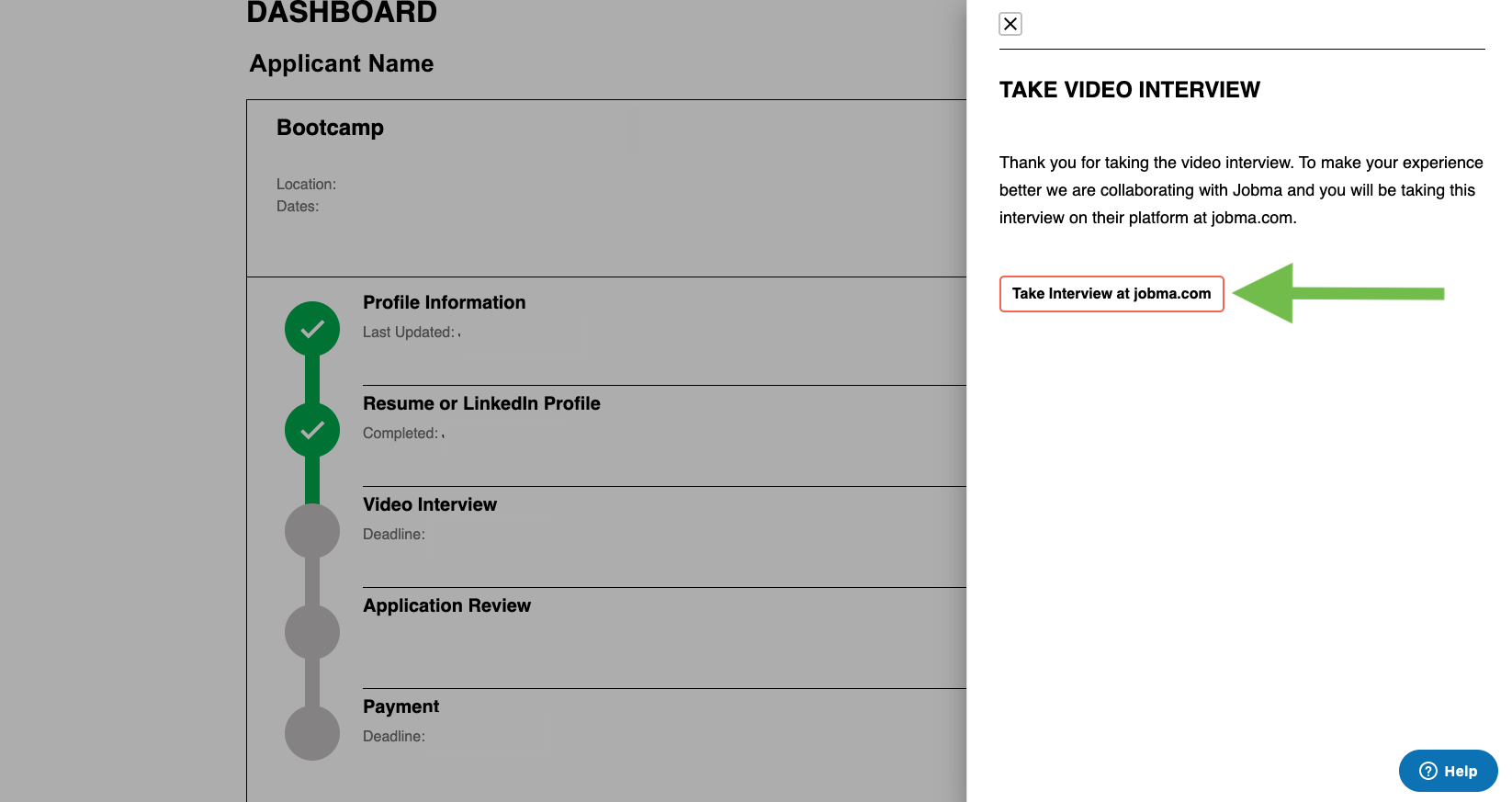
- You will be taken to Jobma.com, where you will record your interview.
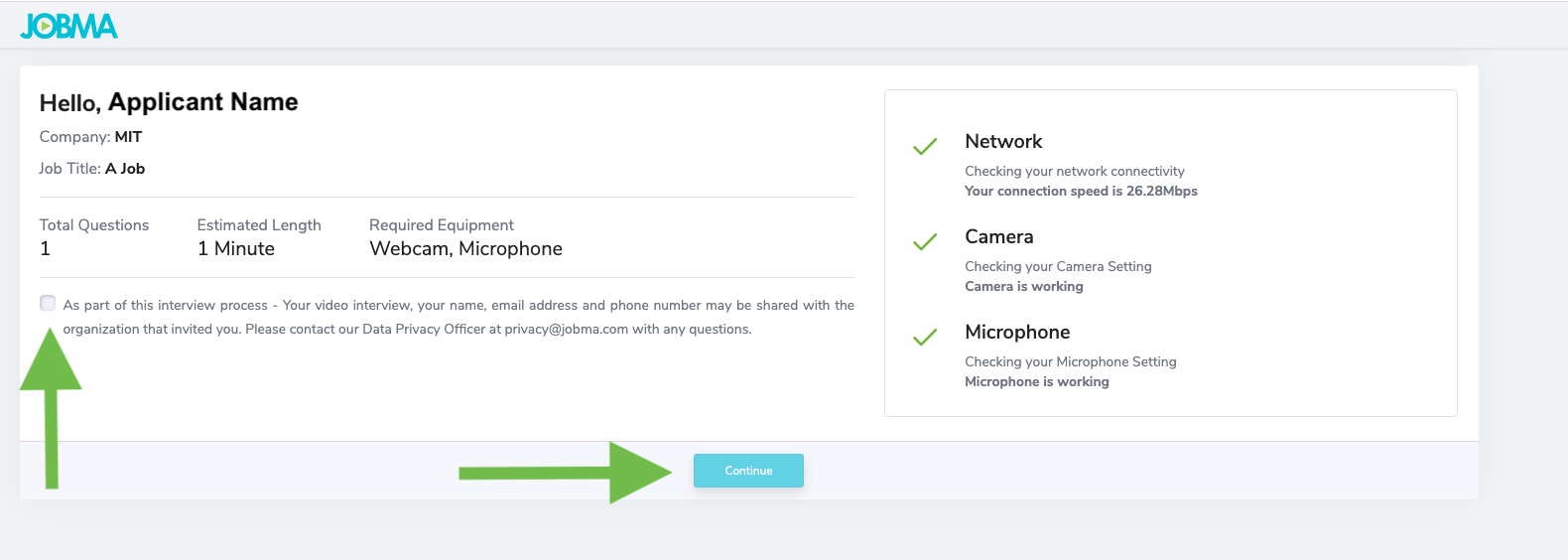
- You can test your camera and microphone and practice your interview by clicking “Try a Practice Question”.
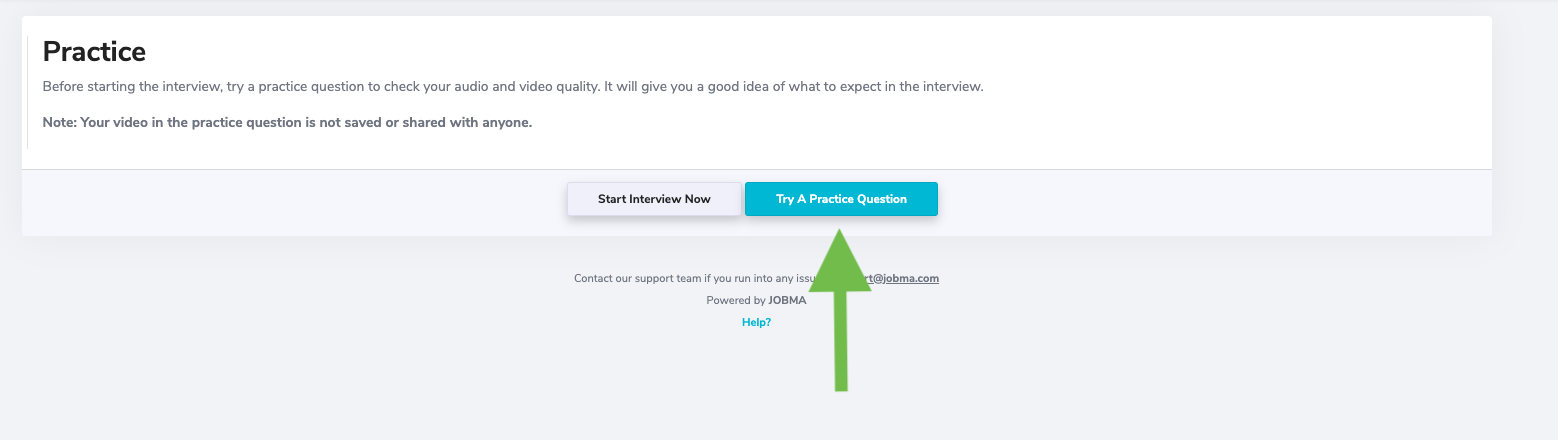
- When you’re ready, you can click “Skip” at the bottom of the Practice Video page, to move on to your interview.

- You will see this screen:
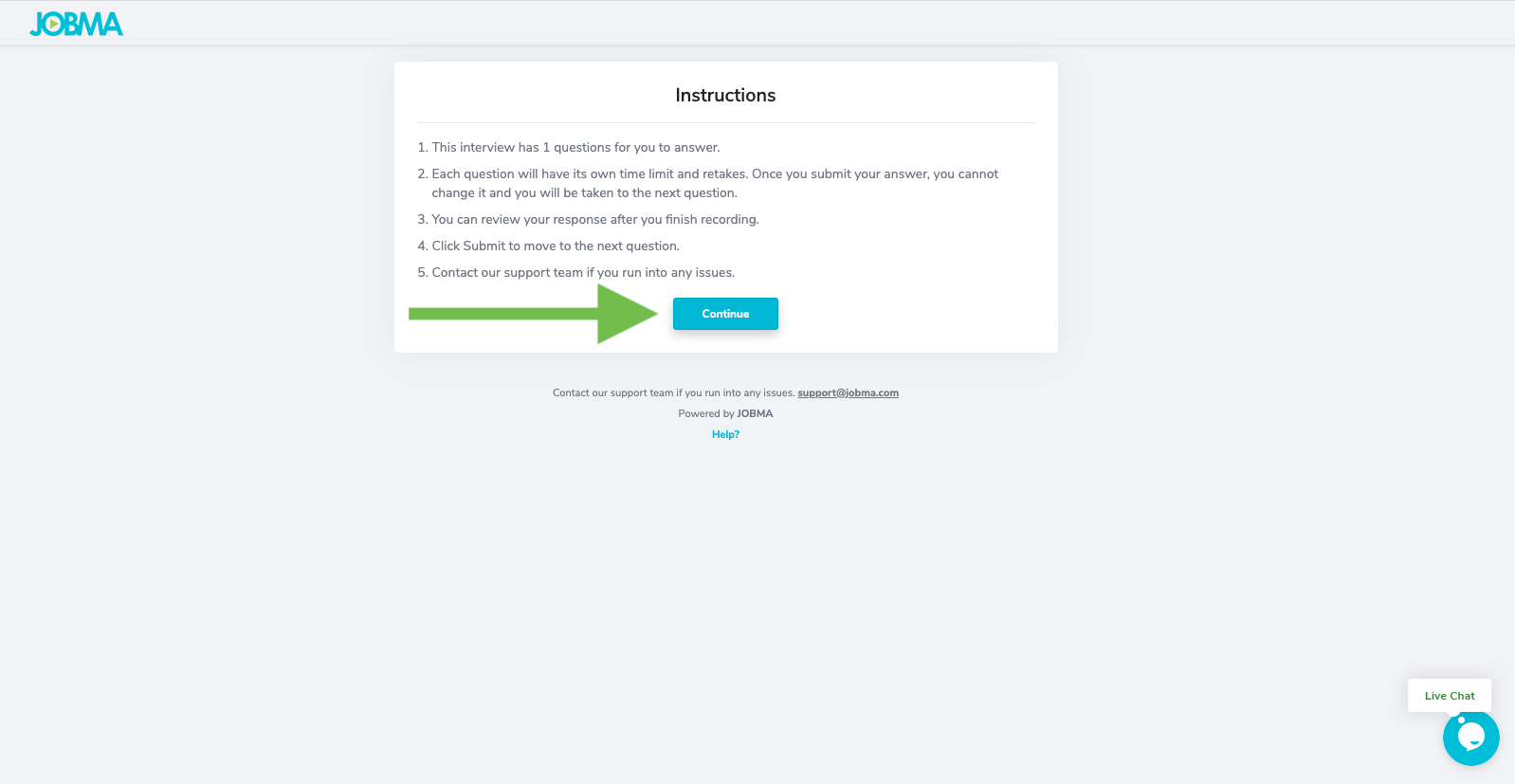
- Click "Continue" to begin your video interview.
- When you begin the interview, your first interview question will appear within a white bar located under your image on the screen. You will be given 1 minute to think about your answer to this question. You will see a timer counting down. When your 1 minute to think has ended, you will be informed that your interview will begin and given a count down of 3 seconds. Then your interview will start recording. You will have 2 minutes to give your answer to the question.
- After 2 minutes, your video will automatically stop recording and the next question will appear. There will be ten questions and for each question, you will have one minute to think about your answer and two minutes to answer.
- When your interview has ended, your video will stop recording and upload. You may see this screen for a few moments:
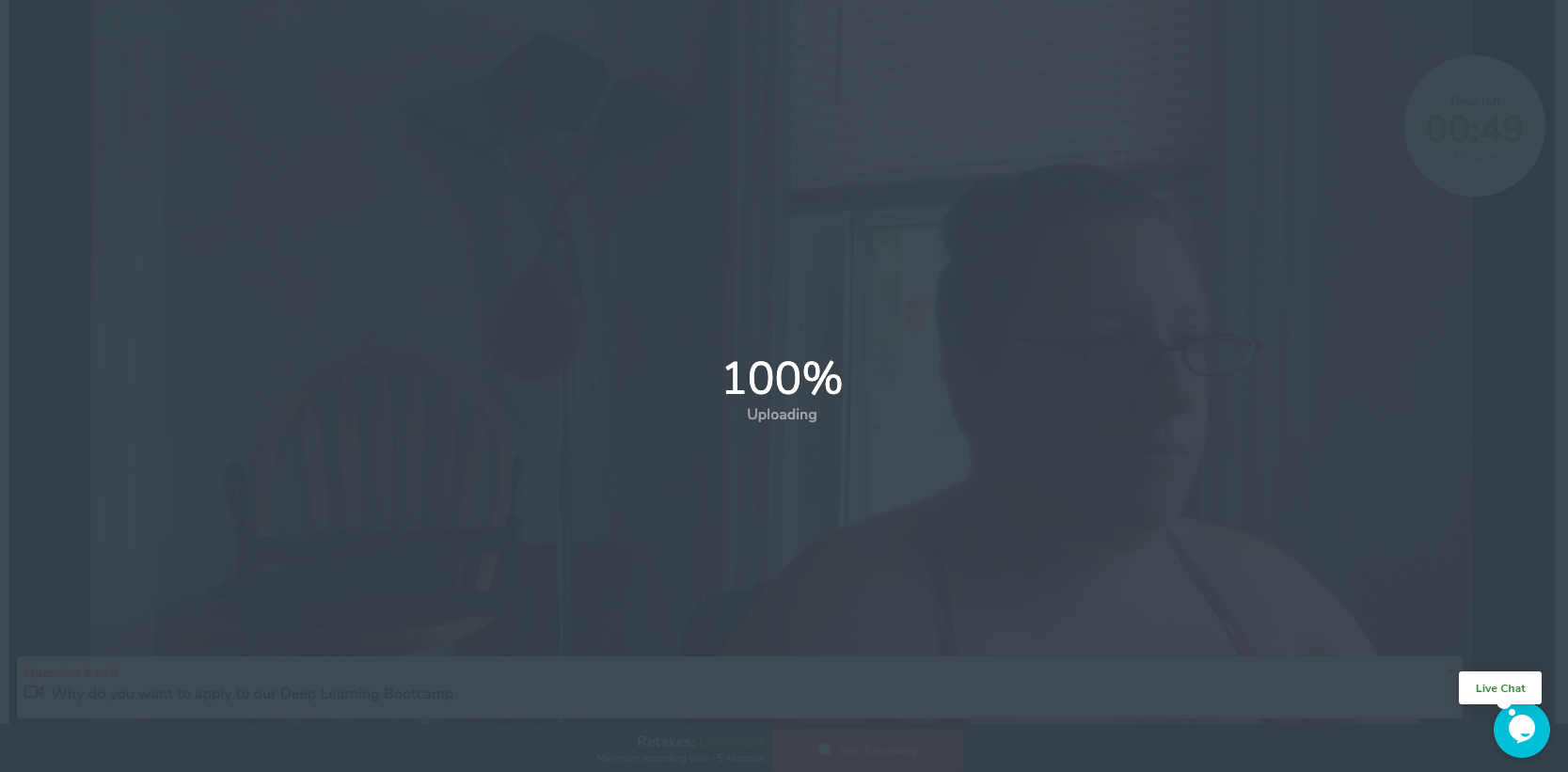
- You will return to the video recording page. Click “Submit” at the bottom of the video recording page. This will submit your entire application including your resume or LinkedIn profile link and profile information.
- You will then see the following page:
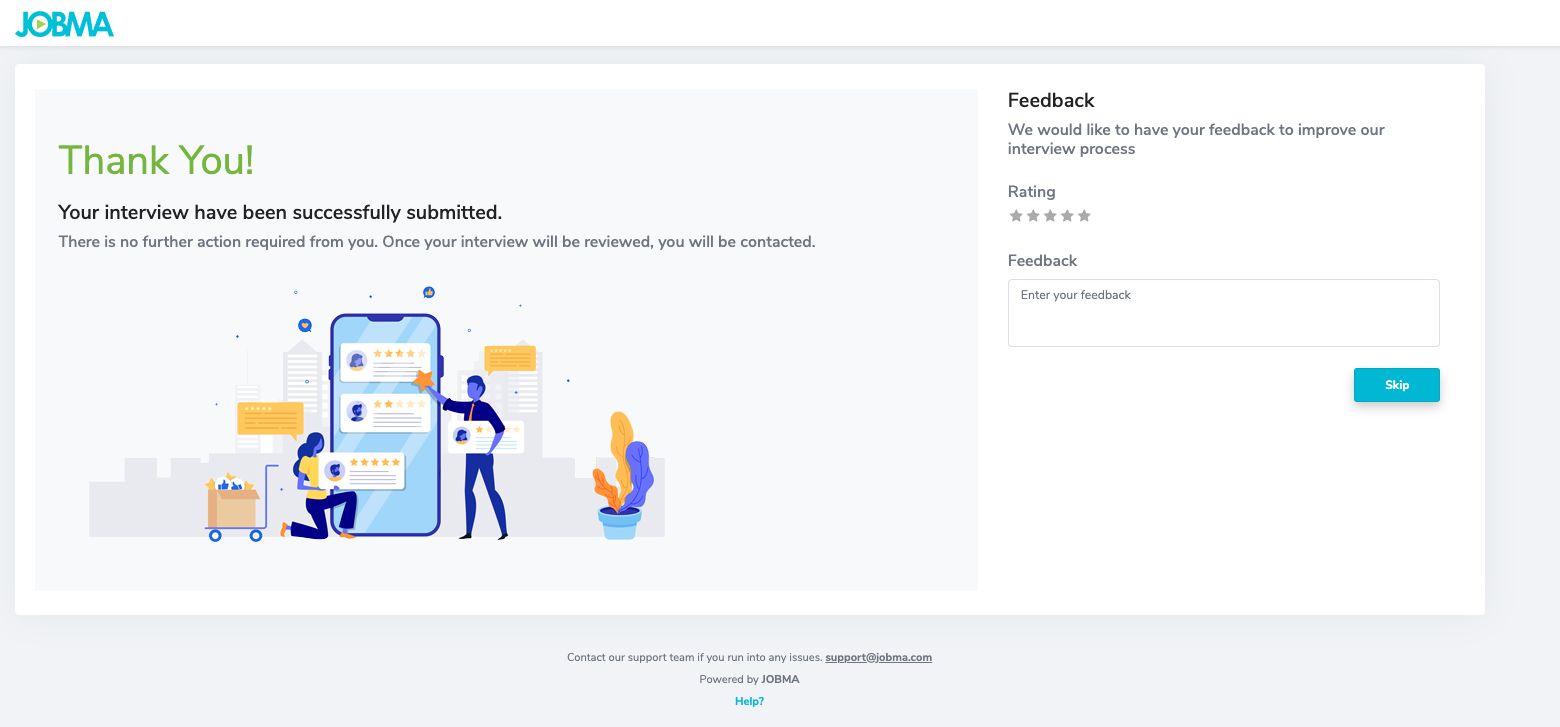
- After you have completed all of these steps, you can return to your Bootcamps Application Site profile to complete applications for new programs and review your past applications at any time.
- You will see that the status of applications that have been submitted will be marked as “In Review”.
Comments
0 comments
Article is closed for comments.